
Use the Training Library
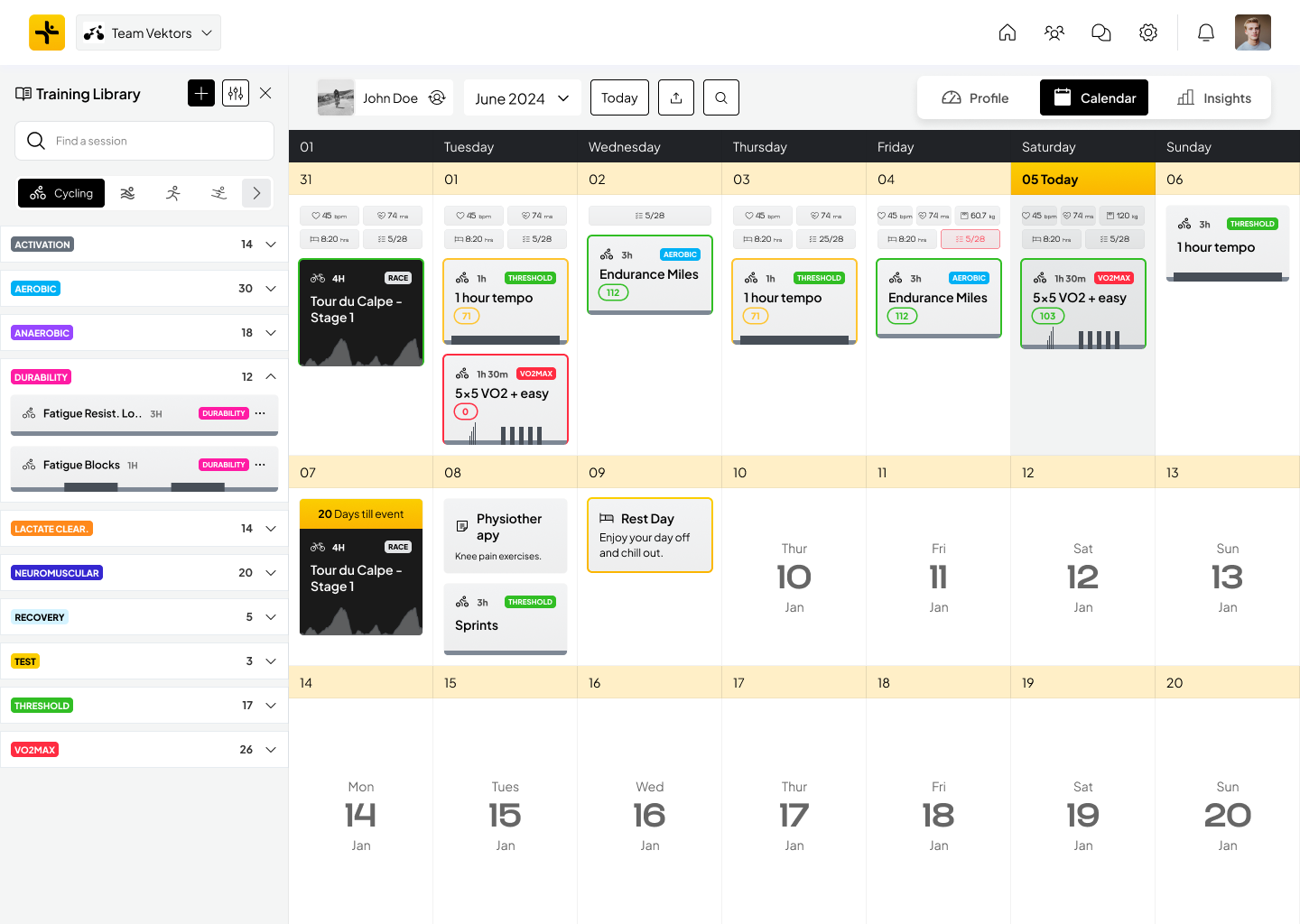
The Training Library lets you store, organise, and reuse your sessions so you can quickly build and adapt a training plan. You can access it anytime from the library icon at the bottom-left of your Calendar.
1. Add a Session to Your Library
From the Calendar
Open your Calendar and create a session on the desired date. Before saving, check Add to training sessions library to store it for future use.
From the Training Library
Open the Training Library via the bottom-left icon on your Calendar. Click the + button to create a new session directly in the library.
2. Add a Saved Session to the Calendar
Drag and drop
Click and hold a saved session, drag it to the desired date in the Calendar, and release to add it to that day.
Customise the session
Click the session to edit duration, intensity, or notes. Drag it to a new date to move it, or right-click and select Delete to remove it.
3. Assign a Session to Multiple Athletes
Coaches can apply a library session to several athletes at once, instead of adding it to each athlete's calendar one by one. This works across sports, including running.
In the Training Library, select the session you want to assign. Choose Add to athletes, then select the athletes you want to receive it and confirm.
💡 Tip: Building your own library of go-to sessions makes planning faster and keeps your training aligned with your goals.
4. Coming from TrainingPeaks?
You don't need to rebuild your library from scratch. Vekta can import your entire TrainingPeaks workout library, custom sessions included, so it's ready to use here in minutes, not hours of manual re-entry.
Learn how to bring your TrainingPeaks workout library into Vekta.